

Your team
Invite people to your GetFlowing workspace, what each role can do, and keeping your account secure with passkeys and two-factor authentication.
Inviting people
On Business and up, several people can work in one workspace. Open Settings, then Team, and choose Invite. In Invite a teammate, enter their email address, choose their Role (Member unless you choose another), and choose Send invite. They get an email to join your workspace. You can change a member's role later from the members list, except the owner's and your own. Invites not yet accepted are listed under Pending invites, where you can revoke them.
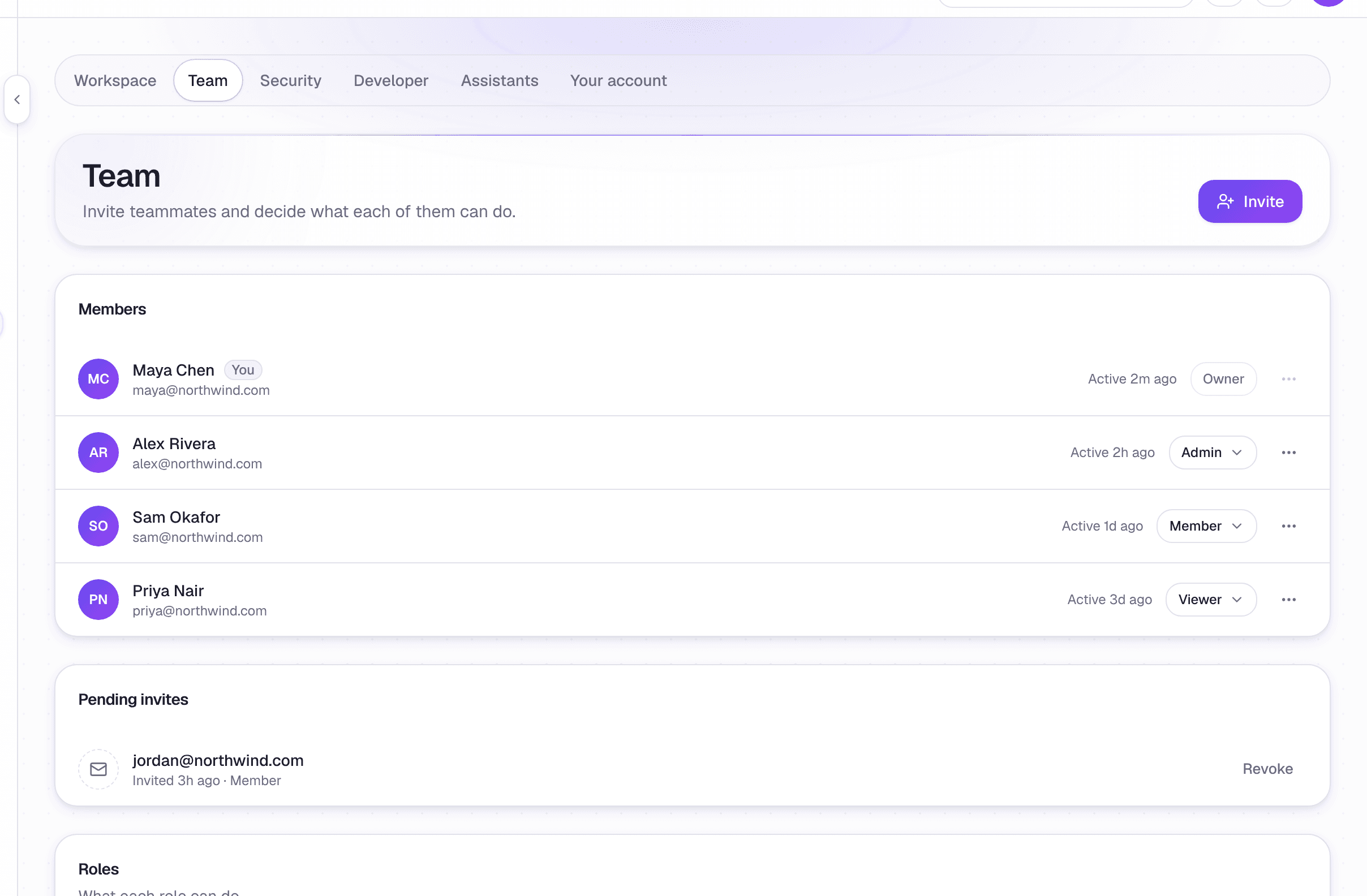 Settings, under Team
Deploy, Starter and Pro are for a single user.
What each role can do
| Role | What it can do |
|---|---|
| Owner | Everything, including billing and the team |
| Admin | Deploy, approve, change apps, manage the team and delete the account, but not billing |
| Member | Deploy and change apps, but not approve |
| Viewer | Look, but change nothing |
Approvals go to owners and admins. See Approvals.
To remove someone, open Settings, then Team, and choose Remove from team beside them. GetFlowing then shows anything it can tell they set up that is still connected, such as webhooks, so you can review it.
Keep your account secure
Ask everyone on your team to add a passkey or turn on two-factor authentication. See Your account. When someone leaves, removing them from the team also revokes their API tokens.