

Deploy from Claude, ChatGPT, Cursor and Codex
Connect Claude, Claude Code, ChatGPT, Cursor or Codex to GetFlowing, choose what it may do, and what an app needs to deploy from your assistant.
Claude (claude.ai, the desktop app and Claude Code), ChatGPT, Cursor and Codex connect to GetFlowing through one MCP connector. Once connected, your assistant reads what an app needs to deploy, checks the code, brings the app in, deploys it, follows the build, and reads the failure and the logs to fix a deploy that fails. GetFlowing builds, scans, deploys, monitors and keeps the app running.
Every plan can connect an assistant. The Deploy plan is made for it.
Connect your assistant
Open Settings, then Assistants. The Connect an assistant card has a tab for each assistant, with the connector address to use and deploy instructions to paste into it. Use the address shown there: it is the same for every assistant.
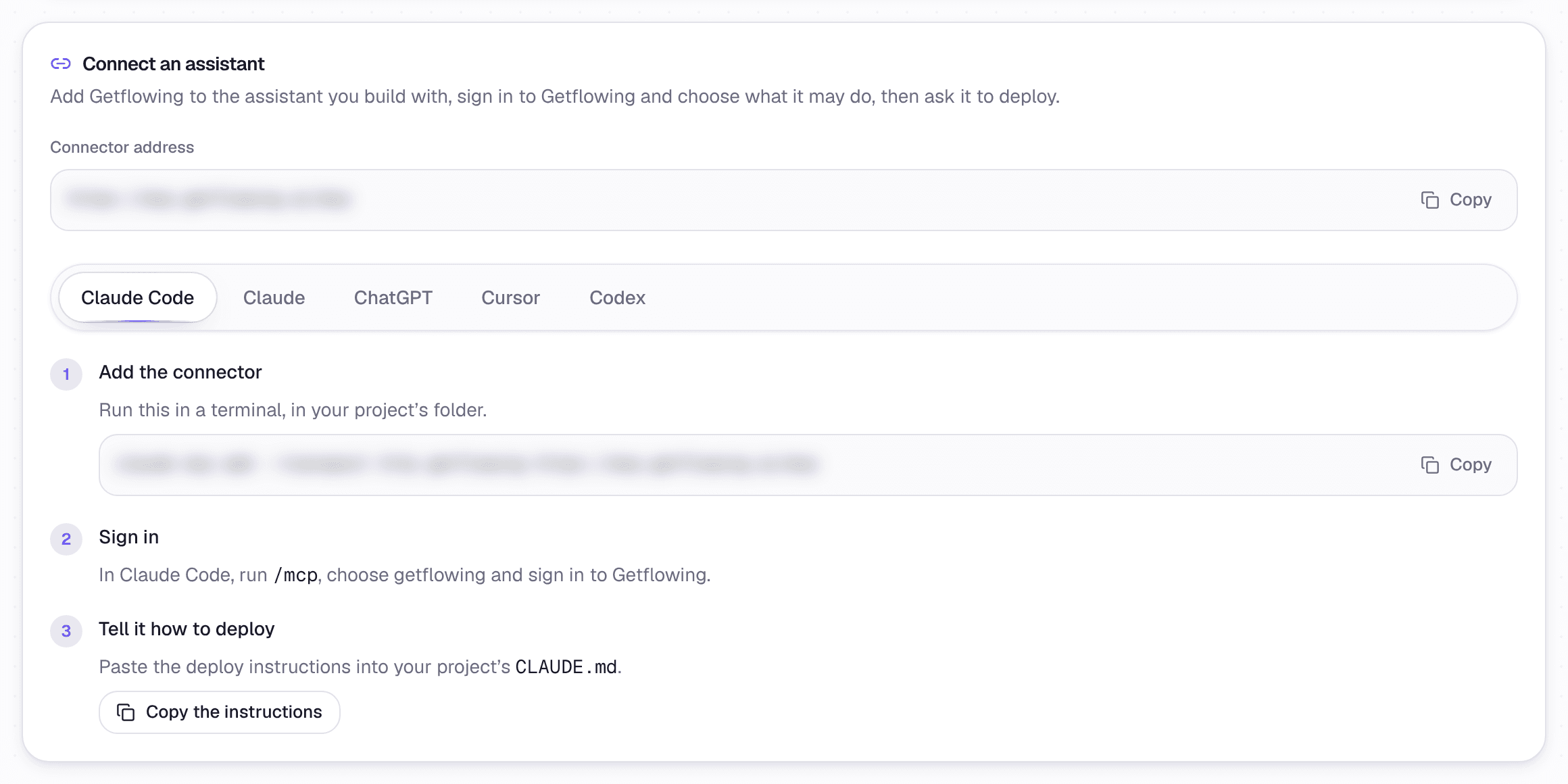 Settings, under Assistants. Your connector address is shown where this one is blurred.
- Claude Code: in your project folder, run
claude mcp add --transport http getflowingfollowed by the connector address, then run/mcpand sign in. - Claude (claude.ai and the desktop app): open Customize, then Connectors, choose Add, then Add custom connector, name it GetFlowing and paste the connector address. Then connect it and sign in. On Claude's Team and Enterprise plans, an owner adds it once under Organization settings, then Connectors, and each person chooses Connect under Customize, then Connectors. Claude's Free plan allows one custom connector.
- ChatGPT: on chatgpt.com, open Plugins, choose +, then Add custom MCP server, and paste the connector address as the Server URL, with OAuth. Create it as a plugin, then install it and sign in. In a Business, Enterprise or Edu workspace, an admin or owner may need to set it up. Which ChatGPT plans can add a custom MCP server, and whether ChatGPT may use tools that change things, such as deploying, depends on your ChatGPT plan and settings, and OpenAI changes these from time to time. OpenAI's help center has the current details for your plan.
- Cursor: use the Add to Cursor link in GetFlowing, or add the entry to
~/.cursor/mcp.json(or.cursor/mcp.jsonin a project). Cursor asks you to sign in the first time it uses the connector. - Codex: run
codex mcp add getflowing --urlfollowed by the connector address, thencodex mcp login getflowingand sign in. - Another assistant that can add a remote MCP server with OAuth sign-in can use the same connector.
That is all you need. Then ask your assistant to deploy your app, in your own words: the connector tells it how GetFlowing works, and what an app needs to deploy on your plan.
Optional: keep the deploy instructions in your project
Every tab under Connect an assistant also has Copy the instructions. You do not need them to deploy. Kept in your project's CLAUDE.md (Claude Code) or AGENTS.md (Cursor and Codex), in a Claude project's instructions, or pasted into a ChatGPT chat after you pick GetFlowing with @, they put GetFlowing's requirements in front of your assistant while it writes the app, not only when it comes to deploy. That helps it build an app that deploys first time.
If the page says assistant connectors are not switched on yet, import your app from GitHub and deploy it in GetFlowing instead. See Import it from GitHub.
Choose what it may do
When you sign in, GetFlowing shows which workspace and account you are connecting, and asks what the assistant may do:
| Permission | What it allows |
|---|---|
| See your apps | Read your apps, builds, deploy failures, logs, security findings, approvals waiting and usage |
| Message your apps as you | Post in an app's chat and hand work to the agent, on plans with the agent |
| Bring in code | Check code and import it as an app |
| Deploy your apps | Deploy an app, or ask for its release |
| Approve requests, each one after you confirm it | Ask you to confirm a waiting approval |
Untick anything you do not want it to have. With Stay connected ticked, the connection lasts until you revoke it. If your assistant does not use it for 30 days, it asks you to sign in again. Untick Stay connected to connect for one hour only.
Each connection is listed in Settings, then Assistants, under Connections, where you can revoke it. An owner or admin sees everyone's, and can switch every connection off at once with Allow assistant connections. Connecting, revoking, and every change an assistant makes are recorded in Security activity, with its name. See Security activity.
The tools the connector gives your assistant are listed in Assistant tools.
What an app needs
The connector tells your assistant the requirements itself, through get_build_requirements and check_app. In short:
- The app is built from its Dockerfile. With none, GetFlowing writes one for the stack it finds, and
check_appsays what it would build the app as. - It listens on
0.0.0.0on the port inPORT, which is 8080. - It answers
GET /, or the path set in its Settings under Health check, with a status from 200 to 399 within 5 seconds, starts within 60 seconds, runs within 512 MB, and its image builds within 20 minutes. - Secrets are never in the code or an uploaded
.envfile. You set them in GetFlowing.
The connector also asks your assistant to make the app safe first: audit the dependencies, commit the lockfile, keep secrets out of the code, and run as a user other than root. See What every app needs for the whole list.
Bringing code in
Your assistant can bring an app in two ways: import it from a GitHub repository your workspace has connected, or send the code straight from your computer. Before anything is imported, built or charged, check_app checks the code and says what must change. The import then goes through the same plan limits, checks and approvals as one you start in GetFlowing, and your assistant can follow it to the first deploy.
To deploy a new version of an app that is already on GetFlowing, the assistant sends the new code the same way. It arrives as a pull request on the app, for a person to merge in GetFlowing. Or the assistant pushes to the app's branch, where your workspace deploys on push. See Deploy on push.
Approvals through an assistant
Where your workspace asks before each deploy of a released app, the release and every deploy after it wait for a person. Your assistant cannot approve anything on its own request: it asks you to confirm each one.
An owner chooses, in Settings, then Assistants, who may approve through an assistant (Nobody, The owner, or Owner and admins; the owner by default) and where each kind of request is confirmed:
- In GetFlowing: you confirm on a GetFlowing page, signed in as yourself. Releases are confirmed here by default.
- In the assistant: your assistant shows you the question and passes on your answer. Choose this only for assistants you trust.
Approvals confirmed in the assistant, or in GetFlowing without a passkey, are emailed to the workspace's owners and admins.
Ask how GetFlowing works
Ask your assistant how something in GetFlowing works, or where a setting is. It searches these docs and answers from them, with a link to the page and to the place in your dashboard, such as an app's Settings under Variables. It does not explain ways around a limit, an approval, billing or a security check. For those, ask the GetFlowing team from Help.
What an assistant cannot do
Billing, secrets and variables, members, domains, deleting an app and taking it offline stay with people, in GetFlowing. An assistant cannot deploy a released app without the approval your workspace asks for, and a rollback it asks for waits for a person to approve it.
Logs, build output, file names, chat history and the agent's replies come back to your assistant marked as data, not instructions.
On each plan
- Deploy: your assistant makes the changes and GetFlowing deploys them. Your first app can run free for 3 days before you pay. See The free deploy.
- Plans with the agent: your assistant can also hand work to GetFlowing's agent in an app's chat, which uses your workspace's agent work and credits. See The AI engineering team.
Security scans
How GetFlowing scans each app's code, secrets, packages, settings and image, what its findings mean, and how to make findings block a deploy.
AI engineering team
On plans with GetFlowing's agent, ask for changes in an app's chat, review them, preview them and ship them. How agent work is counted.