

Find your way around the dashboard
A tour of the GetFlowing dashboard: Home, Apps, the Inbox, Usage and billing, Help and Settings, an app's five tabs, and the shortcuts that move between them.
Everything you do in GetFlowing happens in the dashboard. This page shows where things are.
The sidebar
| Page | What it is for |
|---|---|
| Home | What needs you, what the agent is doing, and how your apps are. On plans with the agent. |
| Apps | Every app in the workspace, with its status and health. Start a new app or import one here. |
| Inbox | Approvals waiting for a decision, Incidents, and Notifications of what the agent and your team did. |
| Usage & billing | Your plan, this month's usage, add-ons and invoices. |
| Help | Ask the GetFlowing team for help and follow their replies. See Get help. |
| Settings | Workspace, Team, Security, Developer, Assistants and Your account. |
On the Deploy plan, which has no agent, the dashboard opens on Apps.
Home
On plans with the agent, Home shows whether the agent is working or waiting for you, a box where you can tell it what to build, fix or deploy, and four counts: apps, healthy apps, AI credits and approvals waiting. Below them are what needs your approval, the agent's recent activity, the health of your deployments, and what to do next.
An app's page
Open an app from Apps. At the top are its name, status and address, with Open app, Release and Deploy.
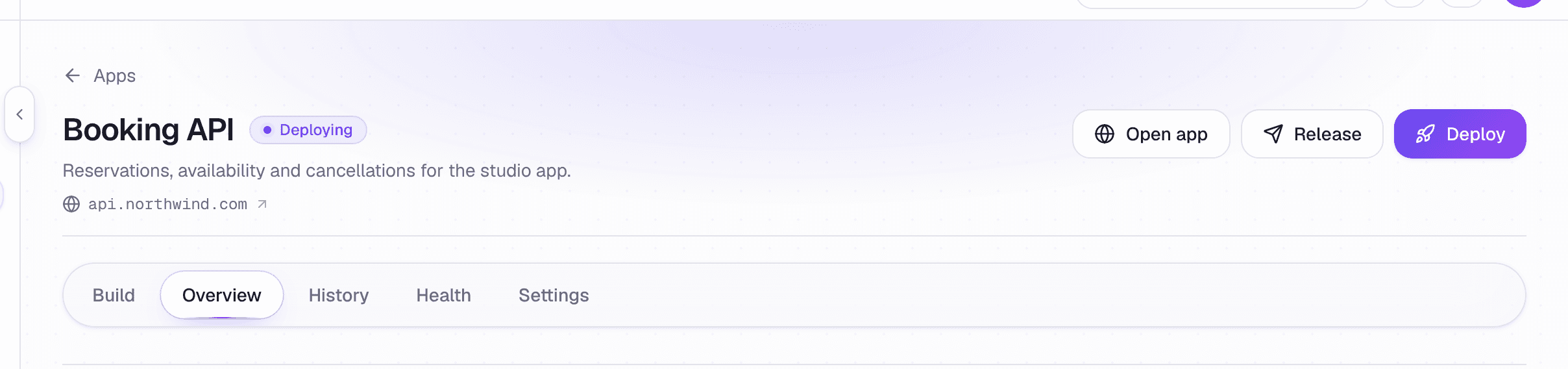 The top of an app's page
Below them are its tabs:
- Build: the app's chat with the agent, a preview, the plan and, with Show code on, its code and data. On plans with the agent. See Preview, plan and code.
- Overview: the app at a glance, including why the last deploy failed, if it did.
- History: its releases, each deploy's steps, and what changed. See Deploys and releases.
- Health: logs, monitoring and security scans. See Logs.
- Settings: everything you can set for the app. See App settings.
Search and shortcuts
Choose Search or ask… at the top, or press Ctrl and K (⌘ and K on a Mac), to jump to any page or app, or to start a new app.
You can also press g and then a letter to jump:
| Keys | Goes to |
|---|---|
| g then h | Home |
| g then p | Apps |
| g then a | The agent console |
| g then r | Approvals |
| g then i | Incidents |
| g then n | Notifications |
| g then b | Usage & billing |
| g then e | Help |
| g then t | Team |
| g then s | Settings |
Your first app
Get your first app live on GetFlowing by describing it to the agent, importing it from GitHub, or deploying it from your AI assistant.
Deploys and releases
How an app is deployed and released on GetFlowing, what a deploy checks before it takes traffic, and trying changes on a second app from the same repository.