

Preview, plan and code
The Build tab, on plans with GetFlowing's agent: chat with the agent, open the preview, follow the plan, edit code yourself and look at your data.
On plans with GetFlowing's agent, each app's Build tab is where you work with the agent. The chat is on the left, and the views are beside it: Preview and Plan, and, with Show code on, Code and Data. Show code is remembered for you.
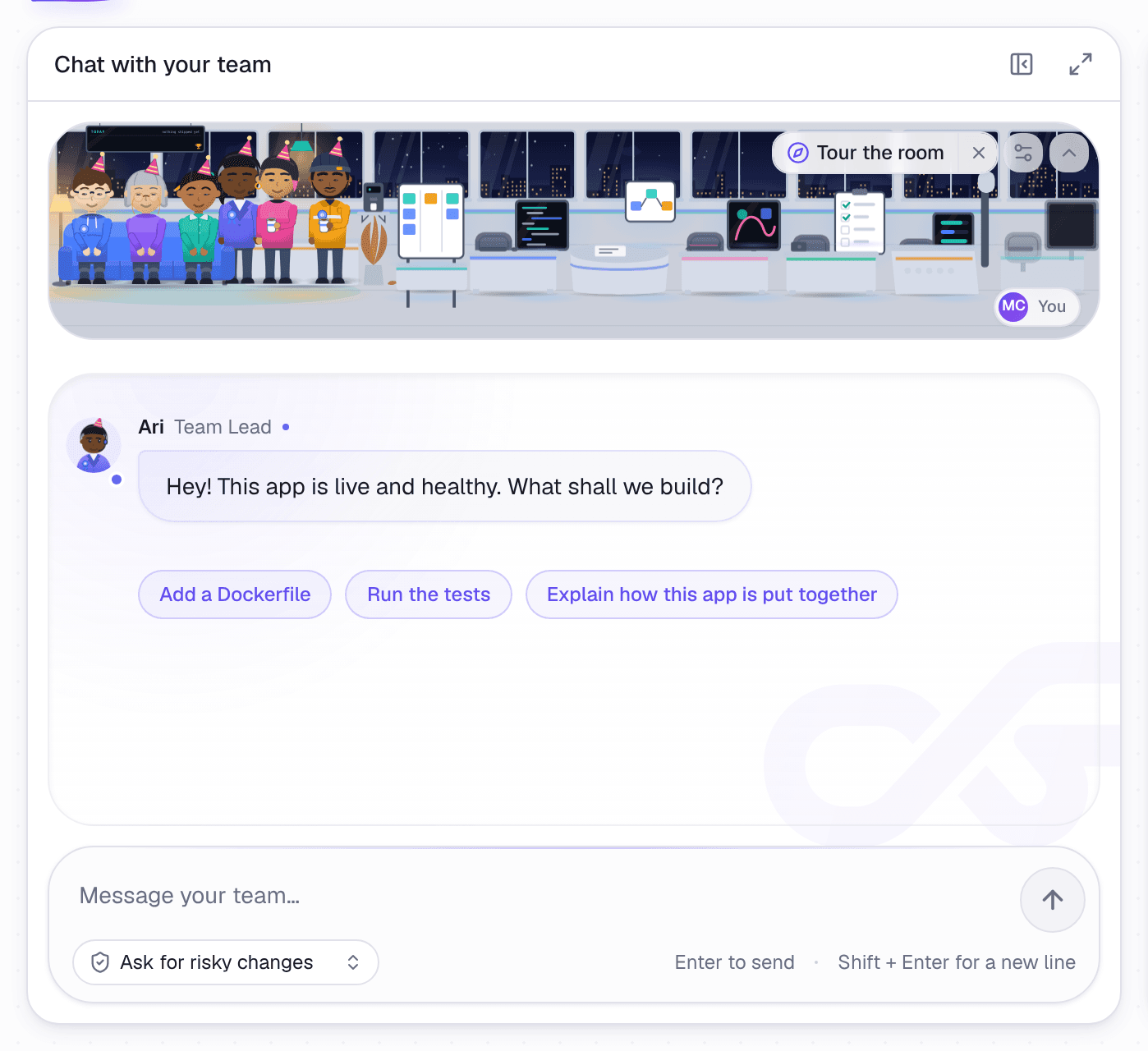 The app's chat, on the Build tab
Preview
Preview is where you open your deployed app: Open app opens it in a new tab.
On Scale and Enterprise, Instant preview shows your changes as you make them, before anything is deployed.
Plan
While a new app is being planned, Plan opens the plan for you to check and approve. After that, it shows the build's progress. See Planning a new app.
Code
Code is a built-in editor, with the chat beside it. Change a file and choose Save: the change is committed to your repository's default branch, with the message "Update ‹file› from the dashboard editor". Discard changes throws away what you have not saved.
Saving does not deploy. Press Deploy when you want the change live. If the app deploys from a branch other than the default branch, the saved change is not on that branch until you merge it there.
- A file can be up to 1 MB.
- If the branch is protected, the editor cannot save to it. Ask the agent for the change instead, and it opens a pull request.
- Only an owner or admin can save a change to a CI workflow file.
On Scale and Enterprise, VS Code in the browser opens the same code in a full VS Code editor.
Data
For an app with a managed database, Data lets you browse its Tables, run one read-only SELECT at a time in the SQL console, and Export CSV. Nothing here can change your data. See Databases.