

Your account and sign-in security
Change your password, add a passkey, turn on two-factor authentication, keep your backup codes and sign out of other devices.
Your sign-in details are yours alone, and work in every workspace you belong to. Open Settings, then Your account.
Password
In the Password card, enter your Current password, then the New password twice, and choose Update password. A password needs at least 15 characters. Changing it signs you out everywhere else.
Sign-in security
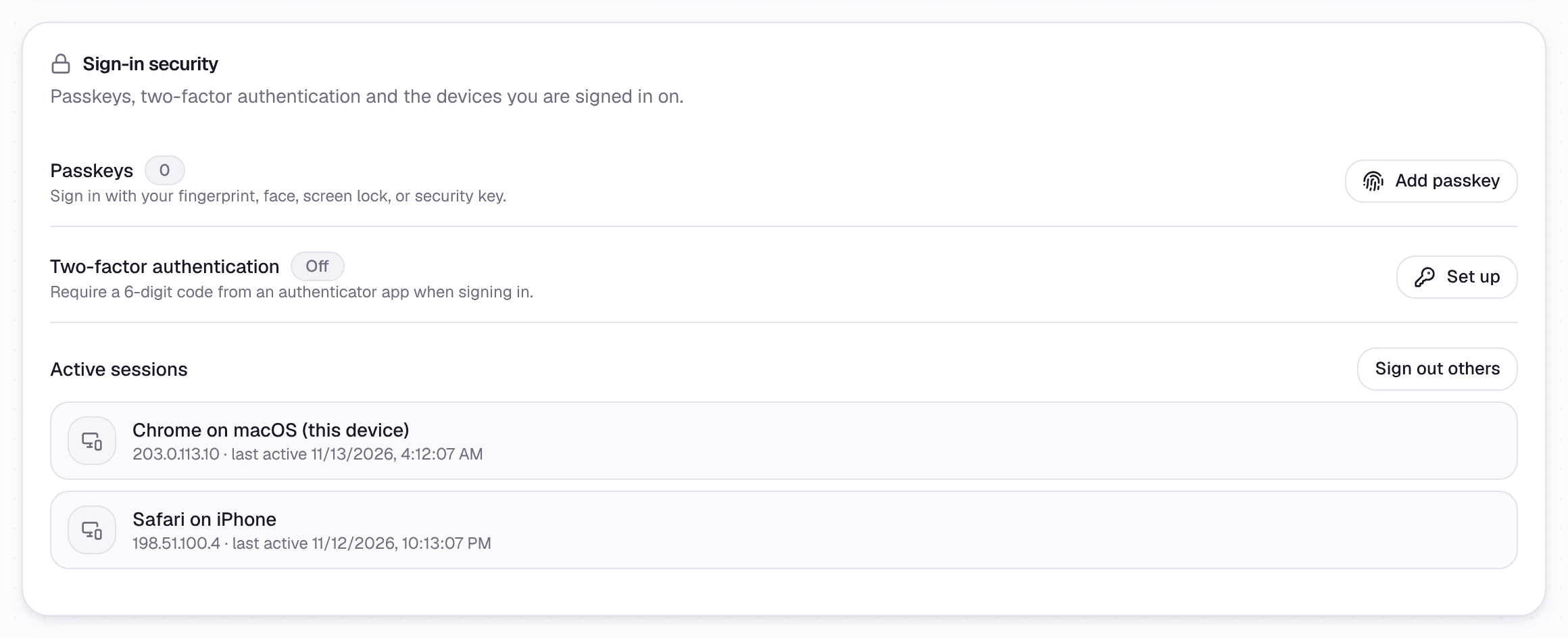 Settings, under Your account
Passkeys
A passkey lets you sign in with your fingerprint, face, screen lock or a security key, with no password to type. Choose Add passkey and follow your device's steps. Each passkey shows whether it is synced across your devices or kept on one, and you can remove any of them.
Two-factor authentication
With two-factor authentication on, signing in also asks for a 6-digit code from an authenticator app.
- Choose Set up beside Two-factor authentication.
- Scan the QR code with your authenticator app, or type the setup key into it.
- Enter the 6-digit code it shows, and choose Confirm.
- Save your backup codes: copy or download them, and choose I saved them.
You get 8 backup codes. Each works once, in place of a code from your app, and they are not shown again. Keep them somewhere safe.
You need a confirmed email address to add a passkey or turn on two-factor authentication. Changes like these first ask you to prove it is you, with your password, a passkey or by signing in again.
Active sessions
Every device you are signed in on is listed, with when it was last active. Choose Sign out others to sign out of all of them but this one.
Email settings
Run decision emails tells you by email when a run of the agent needs your decision. It is on by default. Choose Turn off to stop them.
Your name and email
Your name and email address are shown at the top of the page. They cannot be changed from the dashboard yet. Ask through Help if one needs changing.