

Logs
Read your app's logs on GetFlowing, filter them by level, follow them live, and see why a deploy failed.
An app's tabs are Build, Overview, History, Health and Settings. The Build tab is on plans with the agent.
Your app's logs
Your app's logs are on its Health tab, under Logs.
- By default you see a short summary of the latest lines from the last hour, up to 100 of them: how many lines, warnings and errors there were.
- Choose Advanced (raw) to see the lines themselves, and filter them by level: All, Info, Warn or Error.
- While the app is live, new lines arrive every few seconds. Choose Pause to stop them moving, and Follow to carry on.
- If the last hour is quiet, you see the app's last lines from the past 7 days.
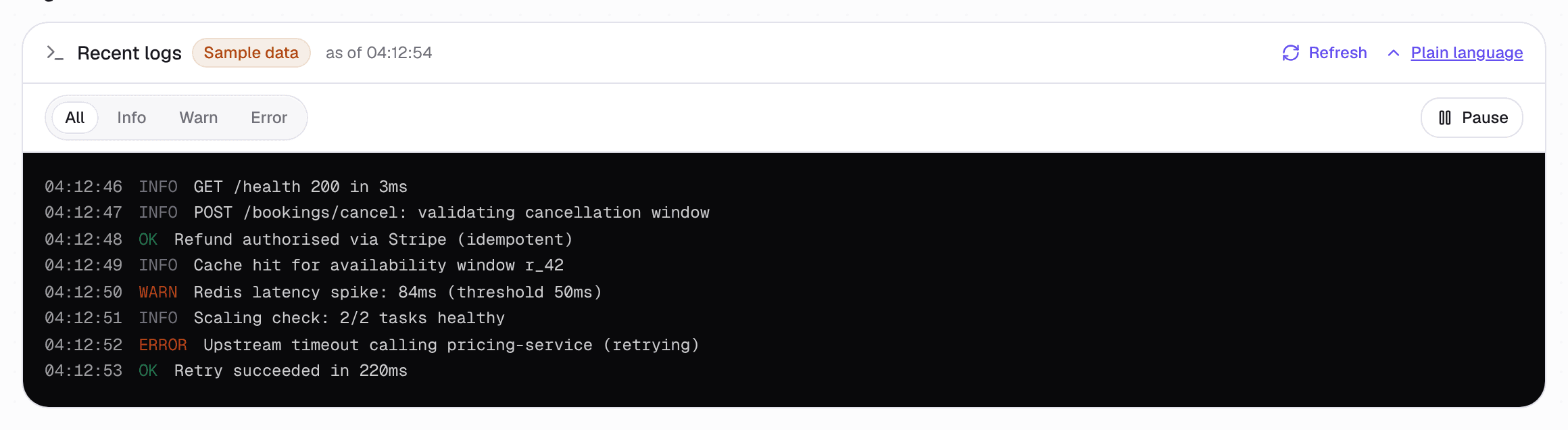 The app's Health tab, under Logs
GetFlowing hides values that look like secrets, such as keys and connection strings, but it cannot recognise every one, so never print a secret. Write logs to standard output and standard error: whatever your app prints there is what you see.
A connected AI assistant can read the same recent logs. See AI assistants.
When a deploy fails
When a deploy fails, the app's Overview shows where it stopped, what to change, the file and line where GetFlowing can tell, and the last lines of the error. Choose Copy for your assistant to hand the whole report to your AI assistant. The failure is also on the app's History tab and, on plans with the agent, in its chat.
GetFlowing explains failures in plain English. See Troubleshooting for each message and what to do about it.
Databases
Add a managed PostgreSQL database to an app on GetFlowing, connect to it from your code, back it up, and what happens to it when the app is deleted.
Monitoring and incidents
How GetFlowing checks your live apps, the charts on the Health tab, and the incidents it opens and resolves when something breaks.