

Approvals
Which deploys and changes wait for a person on GetFlowing, who can approve them, and where approvals appear.
GetFlowing can make a deploy wait for a person before it goes out. Each request shows what will happen, and every decision is recorded.
Ask before each deploy of a released app
In Settings, under Workspace, on the Deploys tab (called Agent and deploys on plans with the agent), under Approval policy, Ask before each deploy of a released app makes each deploy of a released app wait for a person before it goes out. It is on by default on plans with the agent, and off by default on Deploy.
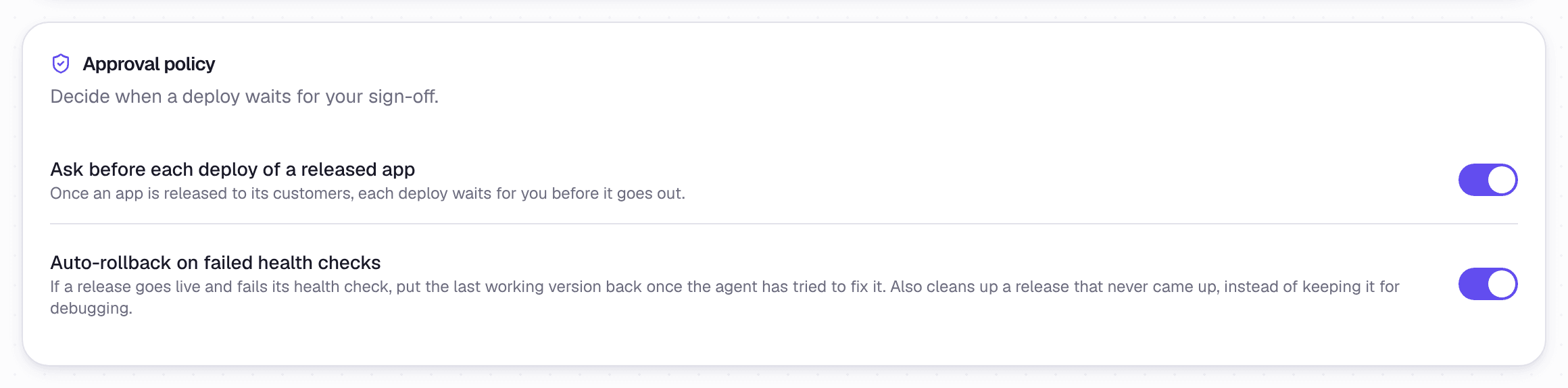 Settings, under Workspace, on the Agent and deploys tab
Before an app is released, its deploys go out at once. See Deploy and release.
What else waits
- A rollback always needs approval. If you are an owner or admin, confirming the rollback approves it.
- The agent's risky changes. On plans with the agent, under the app's Agent approvals default, Ask for risky changes, a change to your database migrations, the packages your app installs, or its build and deploy files, or deleting an existing file, waits for approval. With the app's Agent approvals set to Approve everything, the agent does not stop to ask, though changes to CI workflows are still reviewed. See Agent controls.
- Imported code with database migrations waits for approval before it deploys, whatever your workspace otherwise allows.
- A self-heal fix: always for a released app in a workspace that asks before each deploy, and for any app if you choose. See Self-healing deploys.
Changing a variable or a secret does not wait for approval. The deploy that picks the new value up does, where your workspace asks before each deploy of a released app.
Approve from the app page
If you are an owner or admin and press Deploy or Release at the top of an app's page, and that deploy waits for approval, GetFlowing asks you there and then. The dialog shows what Approvals shows for the request. Choose Approve and deploy, or Approve and release, to send it out now. Otherwise it waits in Approvals, as it would for anyone else. A deploy that does not wait for approval asks nothing.
A rollback works the same way: if you are an owner or admin, confirming it approves it.
Who approves
- Owners and admins approve. Members can deploy but not approve.
- Requests wait in the Inbox, under Approvals, in Needs review. Each one says what will happen, with What exactly will happen? for the details, and Approve and Reject buttons. They also show in the app's chat. Work you asked for from Slack asks for its approval in Slack. See Slack.
 A deploy of a released app, waiting for approval
- A connected AI assistant can ask you to confirm an approval, if your workspace allows it. It cannot approve anything on its own: it asks you to confirm each one. See Approvals through an assistant.